- File
-
Design
-
-
All Categories -
Category #1 - New Category
-
My Designs
-
- Share
-
Help
-
Quick Help
- Ctrl+a
Select all objects
Ctrl+d Double the active object
Ctrl+e Clear all objects
Ctrl+s Save the current stage to my design
Ctrl+o Open a file to import a design
Ctrl+p Print
Ctrl++ Zoom out
Ctrl+- Zoom in
Ctrl+0 Reset zoom
Ctrl+z Undo changes
Ctrl+shift+z Redo changes
Ctrl+shift+s Download the current design
delete Delete the activated object
← Move the active object to the left
↑ Move the active object to the top
→ Move the active object to the right
↓ Move the active object to the bottom
shift+← Move the active object 10px to the left
shift+↑ Move the active object 10px to the top
shift+→ Move the active object 10px to the right
shift+↓ Move the active object 10px down - Custom help content
Copyright © 2017–2022 Lumise Inc.
All Rights Reserved.Powered by Lumise Version 2.1.2
-
- Shop
- Cancel
- Repeat
-

-
 German
-
 English
-
 Spanish
-
 Romanian
-
 Russian
-
 Turkish
-
Ukrainian
Languages
-
- 0.0
-
My Stroller
- Back to the store
- Design
- Product
- Templates
- Image
- Text
- Shapes
- Backgrounds
Click or drag the image here
Tap or drag to add text









-
Start designing by adding objects on the left side
- All selected items are grouped | Ungroup?
- Group Objects Group the positions of the selected objects
-
-
Fill Settings
Save this color
-
- Create a QR Code
-
Options
-
Automatically align the active object with other objects -
ON: Keep all current objects and apply the template; OFF: Clear all objects before applying the template -
Replace the selected image object instead of creating a new one -
Select how the background image add-on is displayed
-
- Replace image
- Sowing
-
Mask
-
Select the mask layer
-
-
Remove Background
-
Remove Background
-
Deep:
-
Mode:
-
-
Filters
-
Filters
-
- Original
- B&W
- Satya
- Doris
- Sanna
- Vintage
- Gordon
- Carl
- Shaan
- Tonny
- Peter
- Greg
- Josh
- Karen
- Melissa
- Salomon
- Sophia
- Adrian
- Roxy
- Singe
- Borg
- Ventura
- Andy
- Vivid
- Purple
- Thresh
- Aqua
- Edgewood
- Aladin
- Amber
- Anne
- Doug
- Earl
- Kevin
- Polish
- Stan
-
Brightness:
-
Saturation:
-
Contrast:
-
- Clean the filters
- Click and then drag the mouse to start drawing. Ctrl+Z = undo, Ctrl+Shift+Z = redo
- QR Code Text
-
Fill Settings
-
Fill Settings
Save this color
-
Transparent:
-
Line width:
-
Outline color:
-
- Ungroup the position
-
Arrange the layers
-
Position
-
Location of the Facility
Lock the object's position:
-
Vertical center
-
Top left
-
Top center
-
Top right
-
Center horizontally
-
In the middle on the left
-
Central Center
-
In the middle on the right
- Click the left arrow;
-
Bottom left
-
At the bottom center
-
Bottom right
-
-
Transforming
-
Rotation:
-
Skew X:
-
Skiu Yu:
-
Flip X:
Flip Y:
Free transform by pressing SHIFT+⤡
-
-
Font family
-
Edit text
-
Edit text
-
-
Font size:
-
Spacing between letters
-
Row height
-
-
Text Effects
-
Text Effects
-
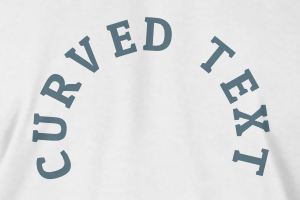
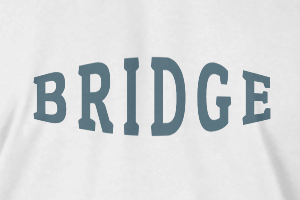
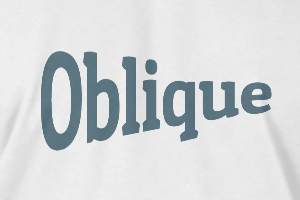
-
Radius
-
Interval
-
Curve
-
Height
-
Landslide
-
Trident
-
-
Text Alignment
- Uppercase / Lowercase
- Bold font
- Text style: italics
- The text is underlined
Scroll to enlarge